A set of widgets to get input from the user.
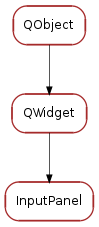
Classes
| InputPanel | A panel design to get an input from the user. |
Bases: PyQt4.QtGui.QWidget
A panel design to get an input from the user.
The input_data is a dictionary which contains information on how to build the input dialog. It must contains the following keys:
- prompt <str>: message to be displayed
The following are optional keys (and their corresponding default values):
- title <str> (doesn’t have default value)
- key <str> (doesn’t have default value): a label to be presented left to the input box represeting the label
- unit <str> (doesn’t have default value): a label to be presented right to the input box representing the units
- data_type <str or sequence> (‘String’): type of data to be requested. Standard accepted data types are ‘String’, ‘Integer’, ‘Float’, ‘Boolean’, ‘Text’. A list of elements will be interpreted as a selection. Default TaurusInputPanel class will interpret any custom data types as ‘String’ and will display input widget accordingly. Custom data types can be handled differently by supplying a different input_panel_klass.
- minimum <int/float> (-sys.maxint): minimum value (makes sence when data_type is ‘Integer’ or ‘Float’)
- maximum <int/float> (sys.maxint): maximum value (makes sence when data_type is ‘Integer’ or ‘Float’)
- step <int/float> (1): step size value (makes sence when data_type is ‘Integer’ or ‘Float’)
- decimals <int> (1): number of decimal places to show (makes sence when data_type is ‘Float’)
- default_value <obj> (doesn’t have default value): default value
- allow_multiple <bool> (False): allow more than one value to be selected (makes sence when data_type is a sequence of possibilities)
Example:
app = Application()

d = dict(prompt="What's your favourite car brand?",
         data_type=["Mazda", "Skoda", "Citroen", "Mercedes", "Audi",
                    "Ferrari"],
         default_value="Mercedes")
w = InputPanel(d)

class Listener(object):
    def onAccept(self):
        print "user selected", w.value()

l = Listener()
w.buttonBox().accepted.connect(l.onAccept)
w.show()
app.exec_()
Returns the button box from this panel
| Returns: | the button box from this panel |
|---|---|
| Return type: | PyQt4.Qt.QDialogButtonBox |
Adds the given button with the given to the button box
| Parameters: |
|
|---|
Sets the icon to the dialog
| Parameters: | pixmap (PyQt4.Qt.QPixmap) – the icon pixmap |
|---|